Guarding Confidential Data in Real-Time Remote Sessions
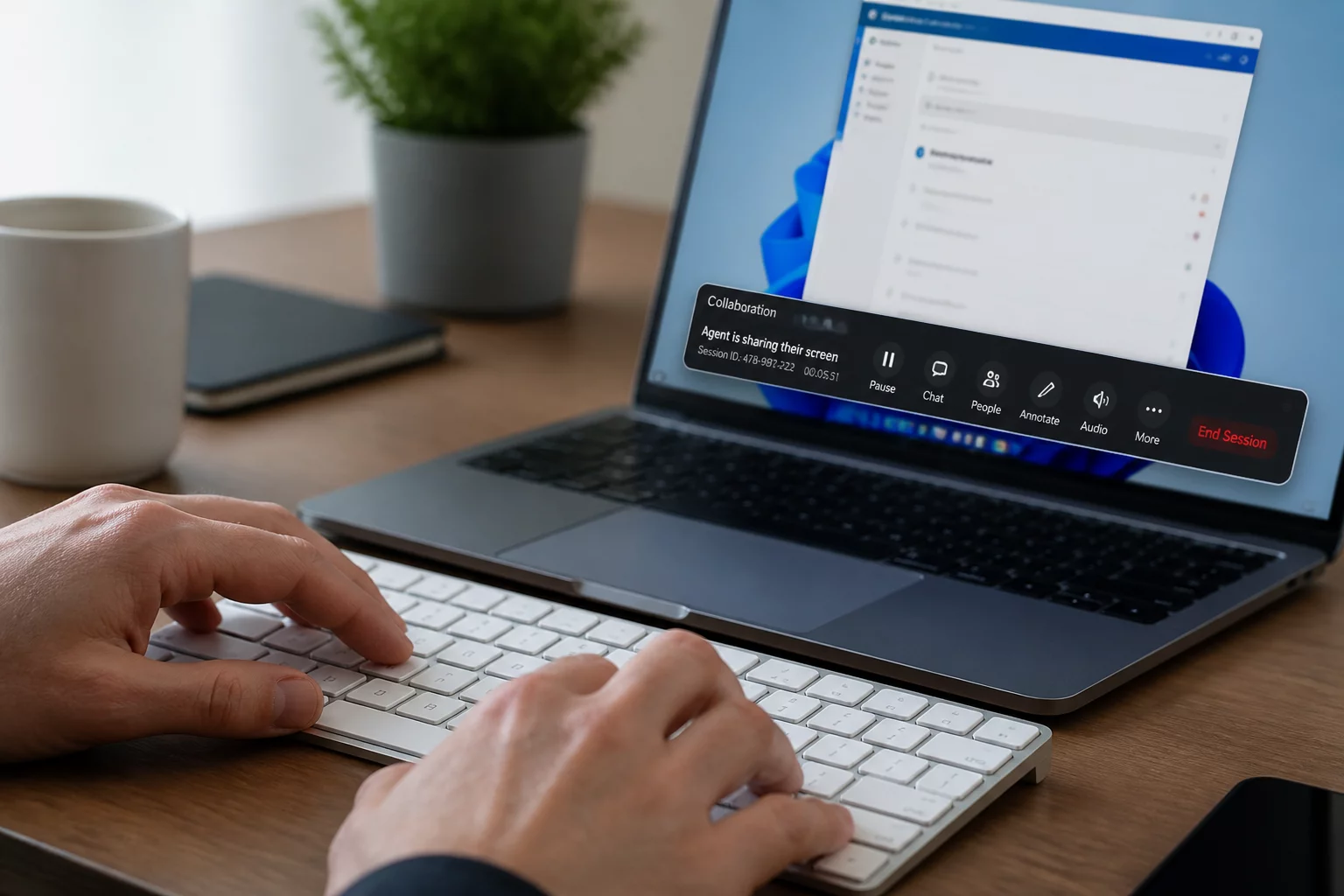
Live screen sharing exposes open applications, browser history, personal messaging channels, and confidential system records to the technician. Without strict privacy boundaries, technicians risk unintentional exposure to regulated data, while users lose confidence in the support workflow. Standardizing pre-connection cleanup, in-session blanking mechanisms, and explicit data isolation protocols ensures support proceeds smoothly without exposing sensitive personal or organizational information.
Core Privacy Guardrails
- Scope Limitation
- Relevant Windows Only
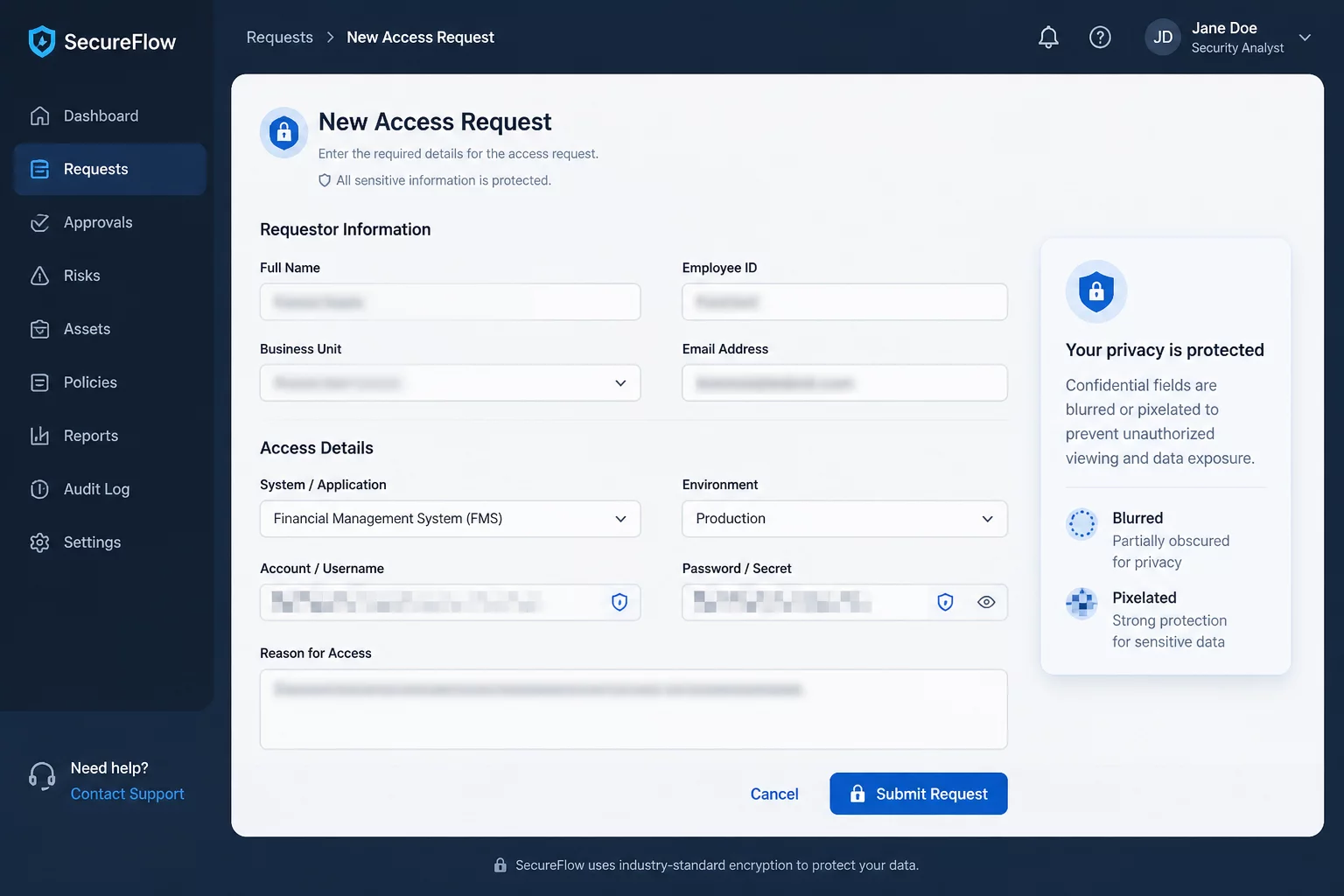
- Credential Input
- Blind Entry / User Typed
- Temporary Masking
- Screen Blank / Blackout
- Audit Trail
- Exclude Unnecessary Private Data
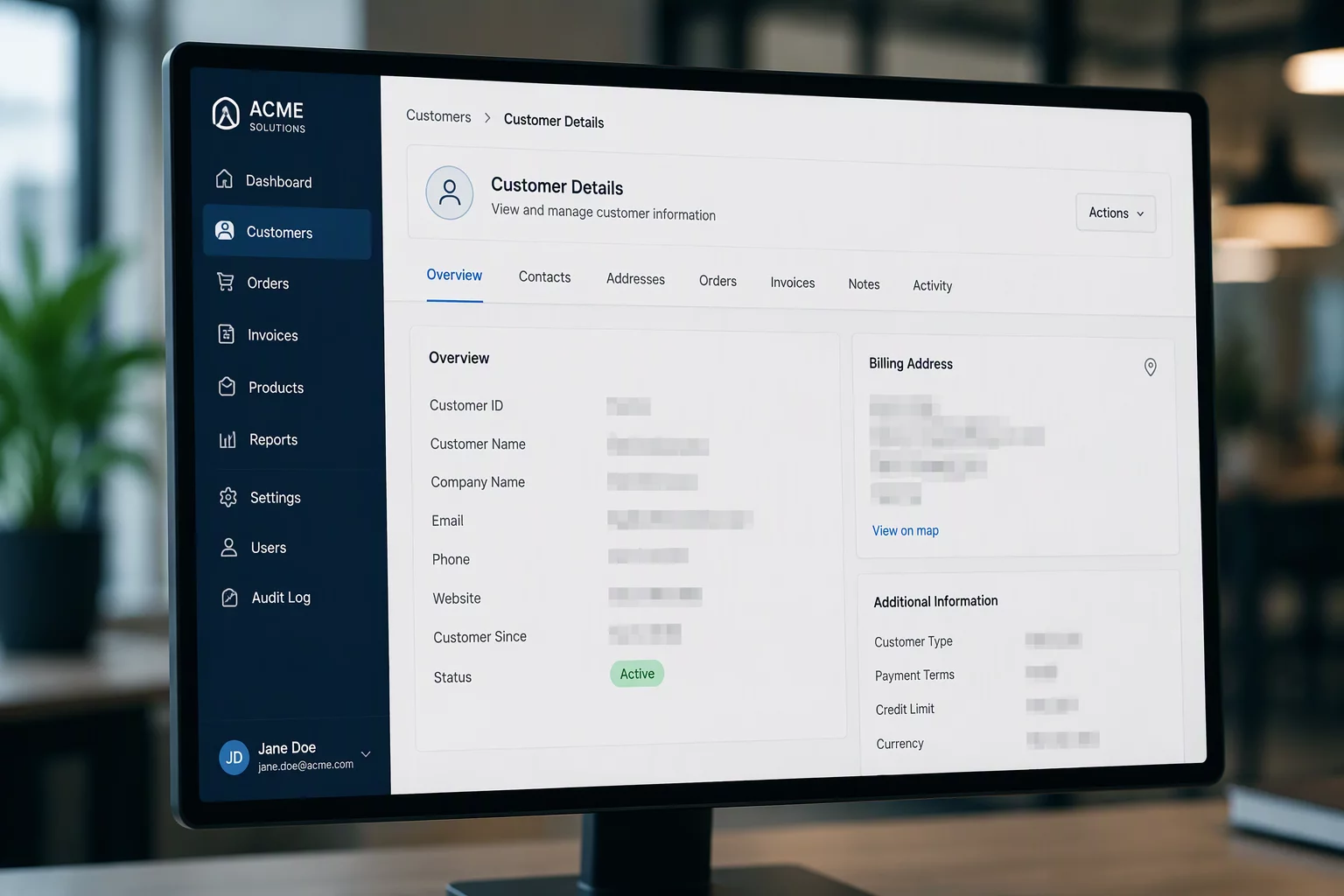
Table of Contents
Step-by-Step Sensitive Data Handling Lifecycle
Pre-Connection Environment Preparation
Technicians instruct users to close unrelated applications, confidential browser tabs, internal messaging channels, and personal files before accepting the incoming remote connection code.
User Readiness Protocol
- Prompt the user to close payroll, HR records, medical files, and personal communication software prior to session code entry.
- Minimize dual-monitor exposure by requesting the session initiate on the primary diagnostic display only.
- Disable desktop pop-up notifications, email toasts, and system alerts that could broadcast private messages during screen capture.
Agreeing on Visibility Boundaries and Password Rules
Both parties define strict expectations regarding what the specialist will view, affirming that administrative credentials and personal passwords will never be entered while the technician has visible access.
Credential and Viewing Agreement
- Announce administrative privilege prompts in advance and instruct users to enter elevated credentials independently.
- Explicitly confirm the boundary of troubleshooting to the specific problematic application or system service.
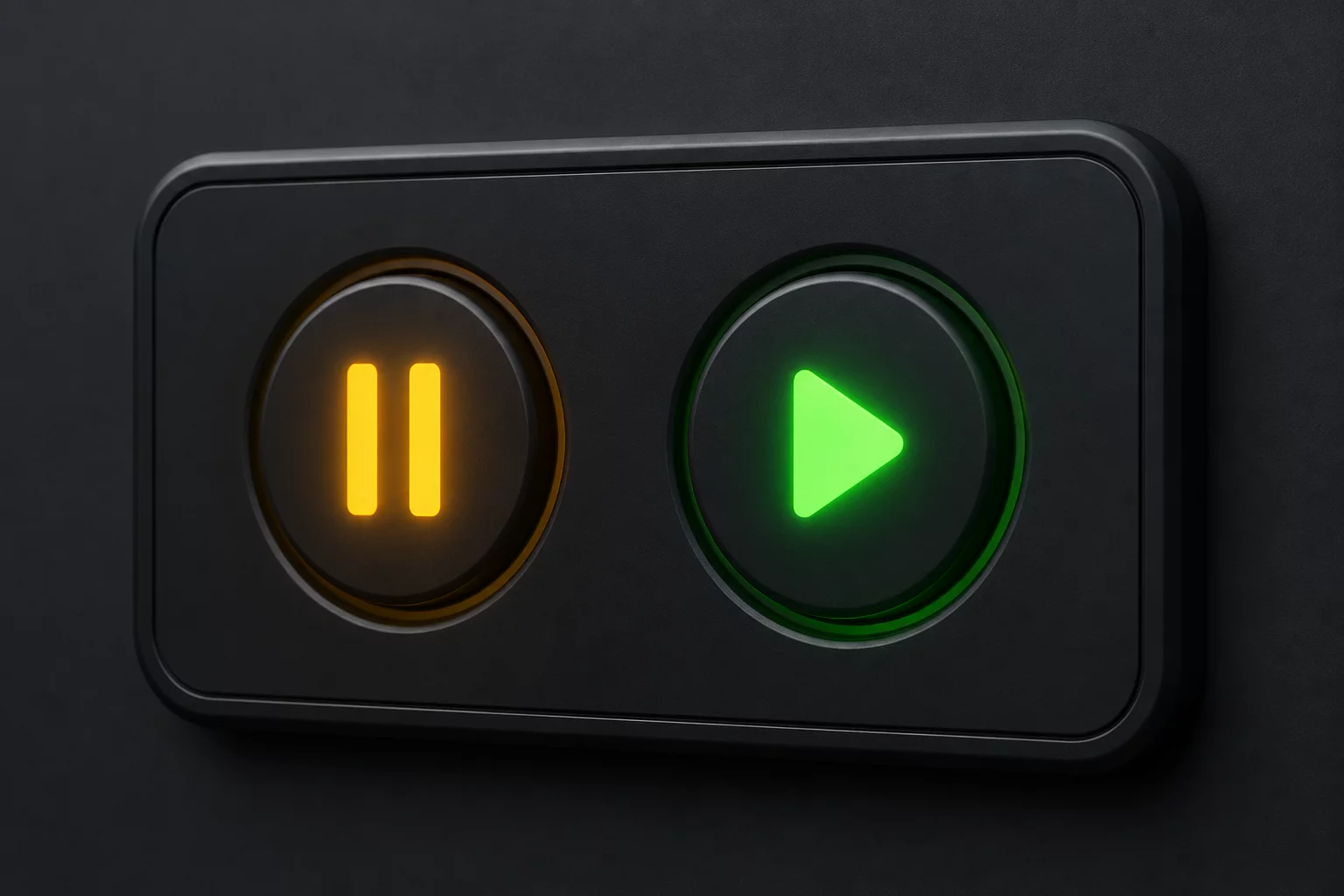
- Establish a verbal pause phrase (such as 'Hold Session') enabling the user to immediately halt remote interaction when needed.
Dynamic Masking and Window-Level Confinement
During the task, stay in the approved application or area. Before private work, verify whether viewing, control, and recording have stopped. Disconnect if the needed privacy boundary cannot be confirmed.
Active Data Masking Steps
- Utilize window-specific viewing modes rather than full desktop sharing whenever the remote tool supports application framing.
- Use a verified privacy method that prevents technician viewing; remote screen blanking may instead hide the local display and is not a substitute for this check.
- Promptly look away or instruct the user to handle multi-factor authentication codes and one-time tokens privately.
Post-Incident Verification and Artifact Cleanup
Once the technical troubleshooting concludes, both parties ensure temporary diagnostic dumps, clipboard buffers, and downloaded test files containing system details are eradicated before disconnecting.
Sanitization Checklist
- Flush remote and local shared clipboard history to prevent lingering password strings or sensitive snippets.
- Delete temporary diagnostic log dumps, configuration exports, or test files generated during the troubleshooting session.
- Confirm that screen recording archives (if mandated by compliance) are stored strictly within encrypted, access-controlled repositories.