Why Pausing Is a Crucial Operational Boundary
During an attended support session, situations frequently arise where technician visibility or active control must pause temporarily. Whether the user needs to enter banking credentials, review confidential communication, or simply take a private moment, a standard pause protocol ensures transparent boundaries without breaking the underlying technical connection or forcing a complete reconnection cycle.
Session Pause Metrics
- Input Lockout
- Verify the Actual Pause State
- Stream Visibility
- Blanked or frozen screen feed
- Max Pause Timeout
- 10-minute auto-termination
- Handoff State
- Maintained encrypted channel
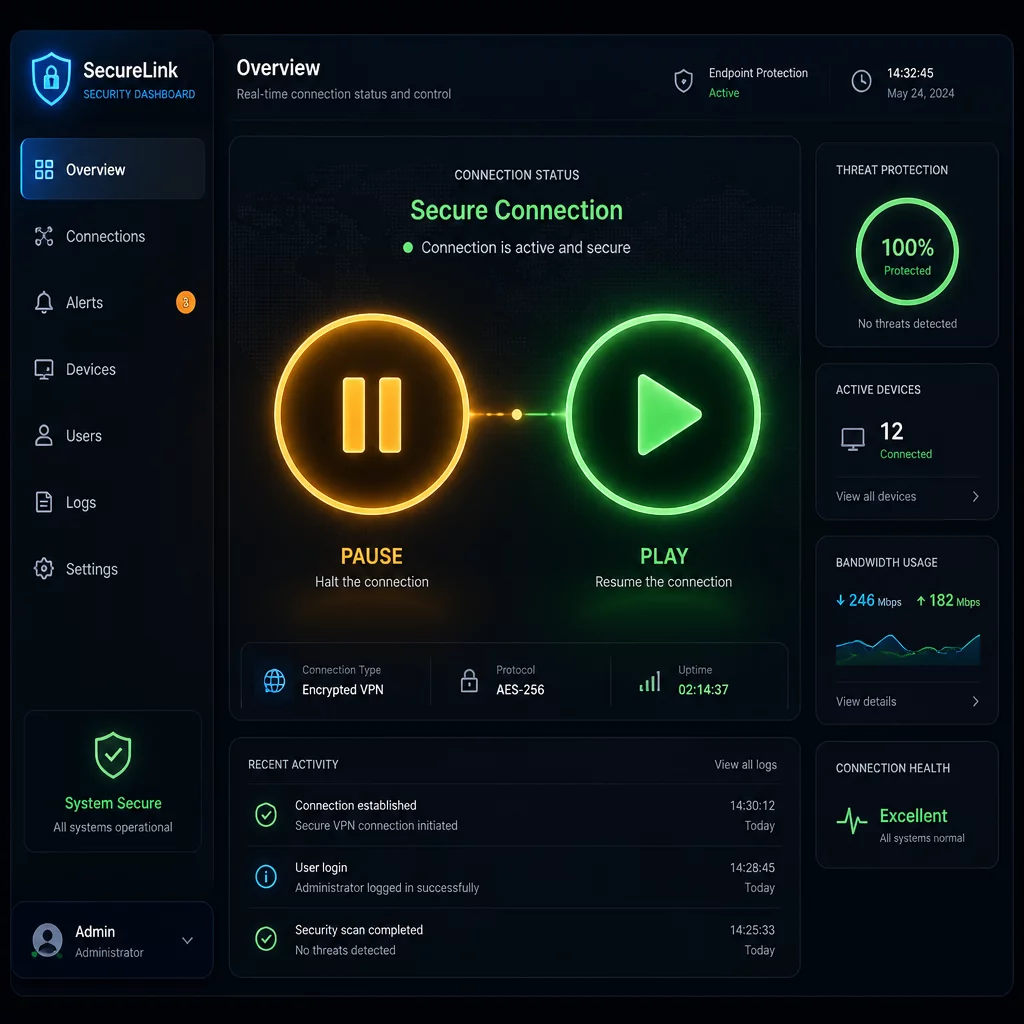
Table of Contents
Step-by-Step Connection Pause and Resume Lifecycle
Identifying the Need for a Temporary Halt
An attended connection must be paused immediately when the task enters private user domains or when background diagnostics require customer inaction. Technicians must verbalize or message the intent before halting active controls.
Trigger Protocol Standards
- User alerts the specialist about entering high-risk credentials or 2FA tokens.
- Specialist requests a pause to execute script compilation without input conflicts.
- Logging the exact pause timestamp into the active support audit ledger.
Freezing Remote Stream and Locking Inputs
Explain whether the intended pause stops remote input, screen viewing, recording, or all three. Check the product’s actual controls. If private work cannot be hidden reliably, disconnect and establish a new session after the user is ready.
Suspension Safeguards
- Automatic suppression of specialist mouse movements and hotkeys.
- Screen stream masking to eliminate incidental visibility of private workspaces.
- Visible standby banner displayed on both client and technician endpoints.
Managing the Inactive Standby Period
During the agreed pause, do not continue observing or acting beyond permission. Verify the visible state on both ends and agree when to resume or disconnect; a countdown or automatic timeout must not be assumed.
Privacy Window Rules
- Device owner completes sensitive authentication without remote observation.
- Use a configured inactivity timeout only if the chosen tool supports it and the policy specifies it.
- Verify whether viewing and control have stopped; use disconnection if the privacy state is unclear.
Mutual Confirmation and Resuming Control
Resuming the session requires a prompt acknowledgment from both parties. Control is only restored after the user verifies all private windows are closed and confirms readiness.
Resumption Handshake
- User signals task completion via in-session chat or voice link.
- The technician asks the user to confirm readiness and permission before resuming.
- Screen refresh restores real-time feed with recorded reconnection handshake.