A Connection Code Is Not the Permission Boundary
Splashtop’s SOS example uses a 9-digit code displayed in the user’s SOS app. The technician enters that code in the Business app. Sharing the code establishes a connection context; it does not replace agreement about identity, device, purpose, visibility, or permitted actions.
Workflow Profile
- Session Category
- Attended / On-Demand
- Token Expiry
- 15 Minutes Unused
- User State
- Present & Active
- Scope Perimeter
- Single Target Device

Workflow Navigation Table
The Four Procedural Stages
Agree on the Request Before Sharing the Code
First confirm the expected technician, target device, and support task through a trusted channel. In the SOS example, the user’s app displays the code and the technician enters it. Share it only with the intended technician; SessionBoundary Playbook neither issues nor accepts codes.
Initiation Rules
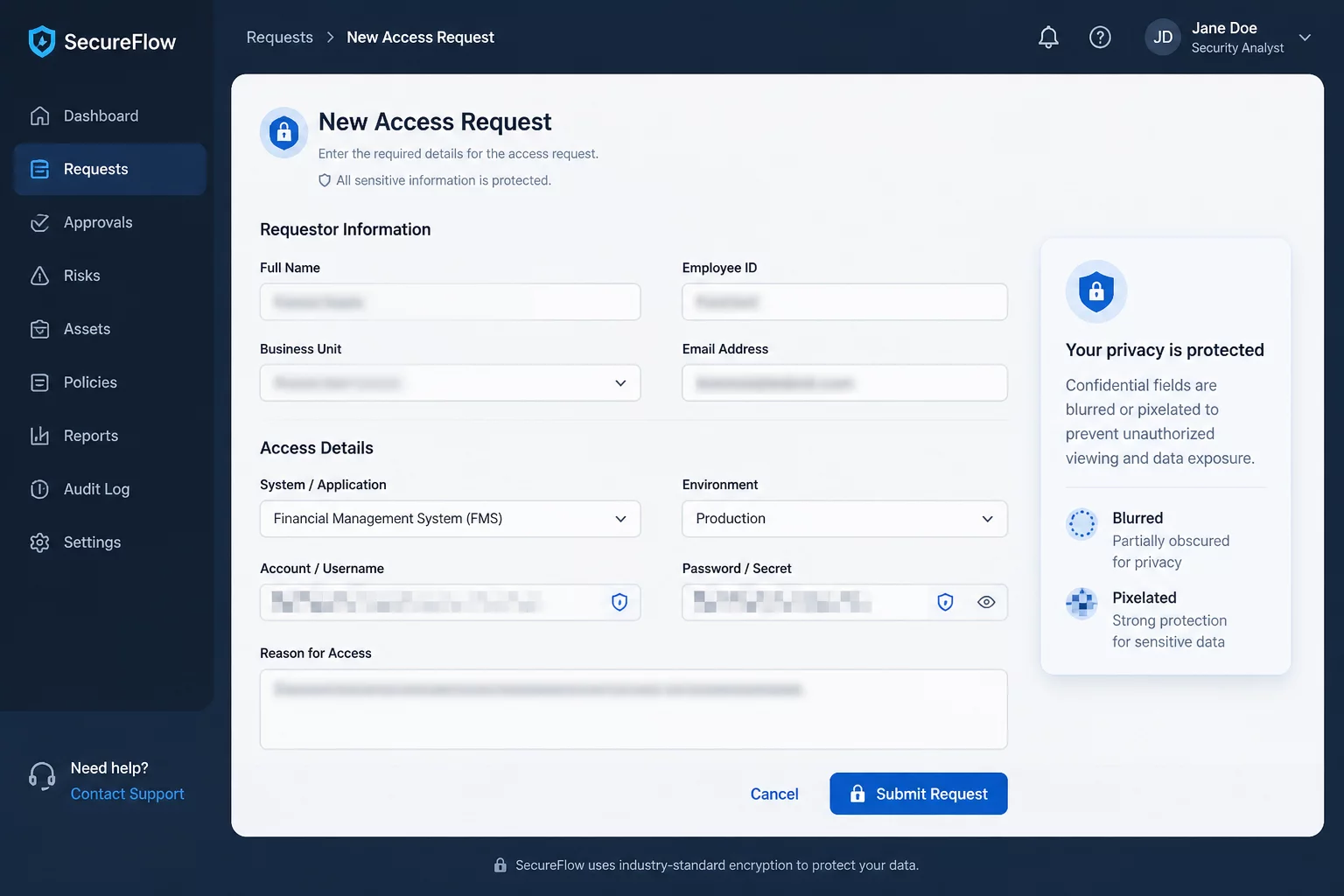
- Keep codes out of inquiry forms, public messages, and session-record notes.
- Direct the user solely to the official organization download portal to avoid third-party spoofing risks.
- Explain the purpose and limits of the agreed session before a code is shared.
Client Applet Execution and Explicit Consent
Explain what the technician will be able to view or control and obtain permission before proceeding. Product prompts and privilege behavior depend on the device and settings; follow the official product instructions rather than assuming a universal approval dialog.
Consent Verification
- Instruct the user to confirm that the technician identity shown in the prompt matches the active support representative.
- Advise the user to minimize personal folders, financial tools, and private email threads prior to approval.
- Note who granted permission, its scope, and when it was confirmed; do not record the code.
Live Session Boundaries and Active Supervision
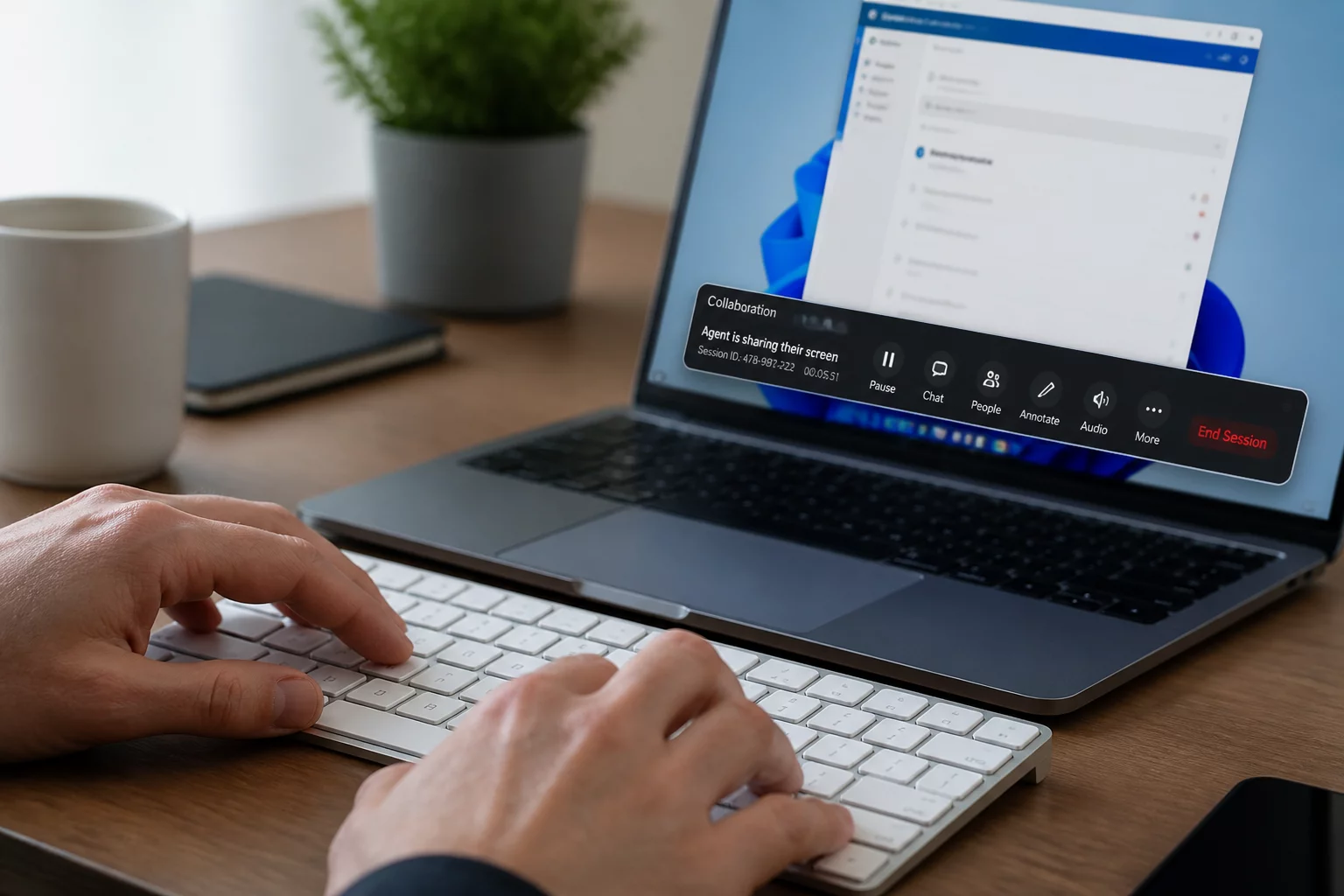
Keep the user informed during active work and agree on turn-taking for mouse and keyboard input. Show the user the available disconnect controls. Physical input priority, screen borders, and pause features vary by tool and configuration.
Operational Standards
- Keep the client informed verbally or through real-time chat before opening diagnostic utilities.
- Pause screen transmission immediately if the user must input sensitive credentials or MFA tokens.
- Confine all administrative commands strictly to the agreed ticket scope without browsing unrelated drives.
Confirm the Outcome and Verify Disconnection
After the task, confirm the result and use the documented disconnect controls. Verify that active viewing and control have ended. In SOS, the same code may allow reconnection while the app remains running; closing the active session and closing the SOS app should be discussed separately.
Closure Requirements
- Trigger disconnect and confirm the visual session indicator disappears from the desktop.
- Ensure no unattended background service or persistent agent was accidentally installed during maintenance.
- Attach the completed session event log and duration report to the primary ticketing record.