Keeping the End-User in the Loop
Attended sessions rely on active two-way communication between the specialist and the computer user. Rather than relinquishing control completely, the user serves as an active collaborator who validates actions, inputs sensitive credentials securely, and oversees the scope of access in real time.
Participation Summary
- Model
- Attended (User Present)
- Input Priority
- Local User Dominance
- Screen Awareness
- Full Visibility
- Termination
- Agreed Disconnect Method

On this page
Structured User Participation Workflow
Pre-Session Preparation & Privacy Screening
Before launching the connection software, the user must prepare their desktop environment to prevent unintended exposure of private files or personal communications.
User Action Checklist
- Close all personal browser tabs, email clients, and confidential documents.
- Disable or silence incoming desktop notifications and messaging popups.
- Verify that the problem state can be easily reproduced on demand.
Establishing the Attended Connection
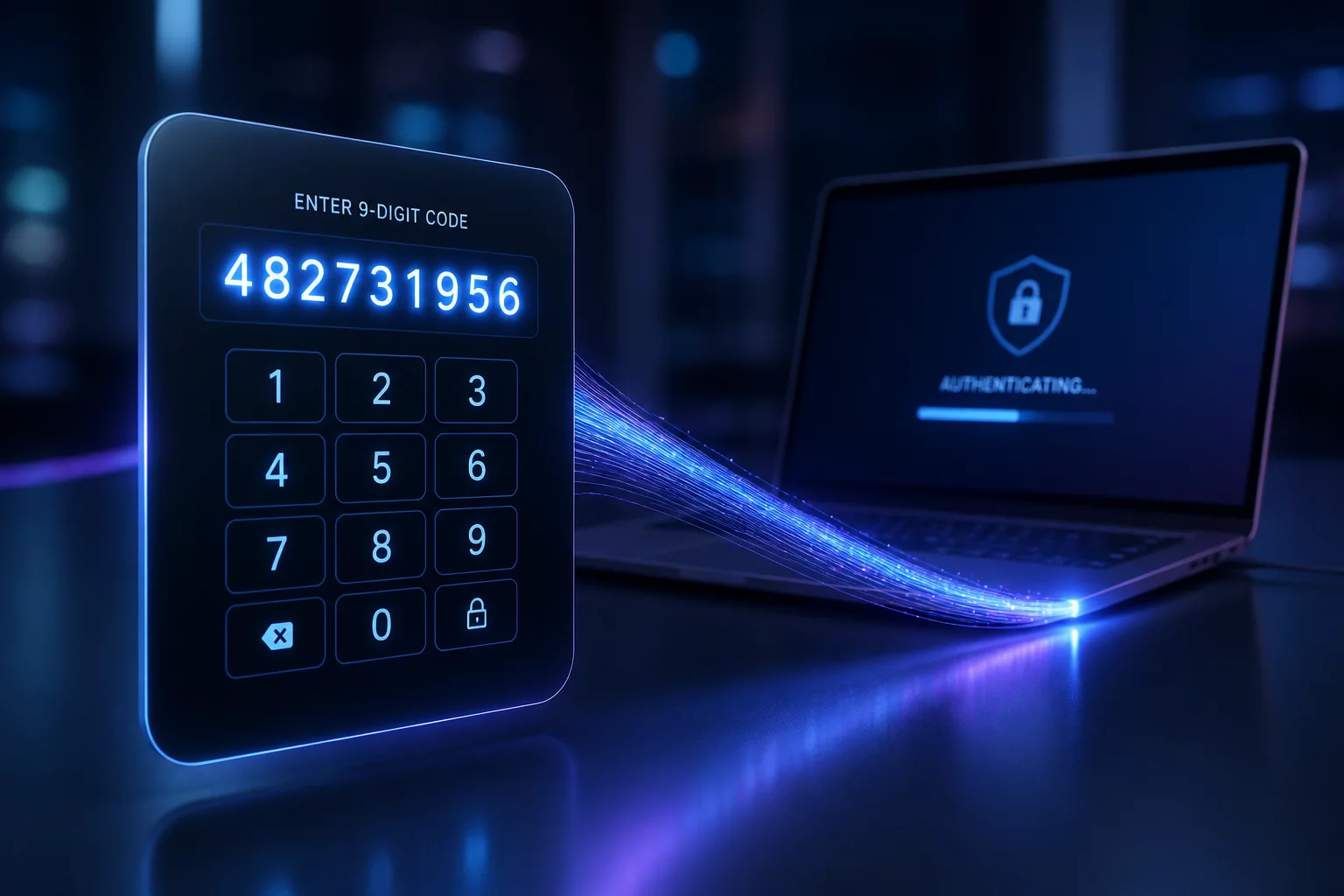
The connection process requires positive verification. The user provides the 9-digit code and explicitly grants screen viewing and control permissions.
Handshake Protocols
- Verify the technician identity against open support ticket communications.
- Provide the temporary one-time session code via phone or official chat.
- Review and approve the system dialog requesting remote screen access.
Real-Time Interaction & Credential Handling
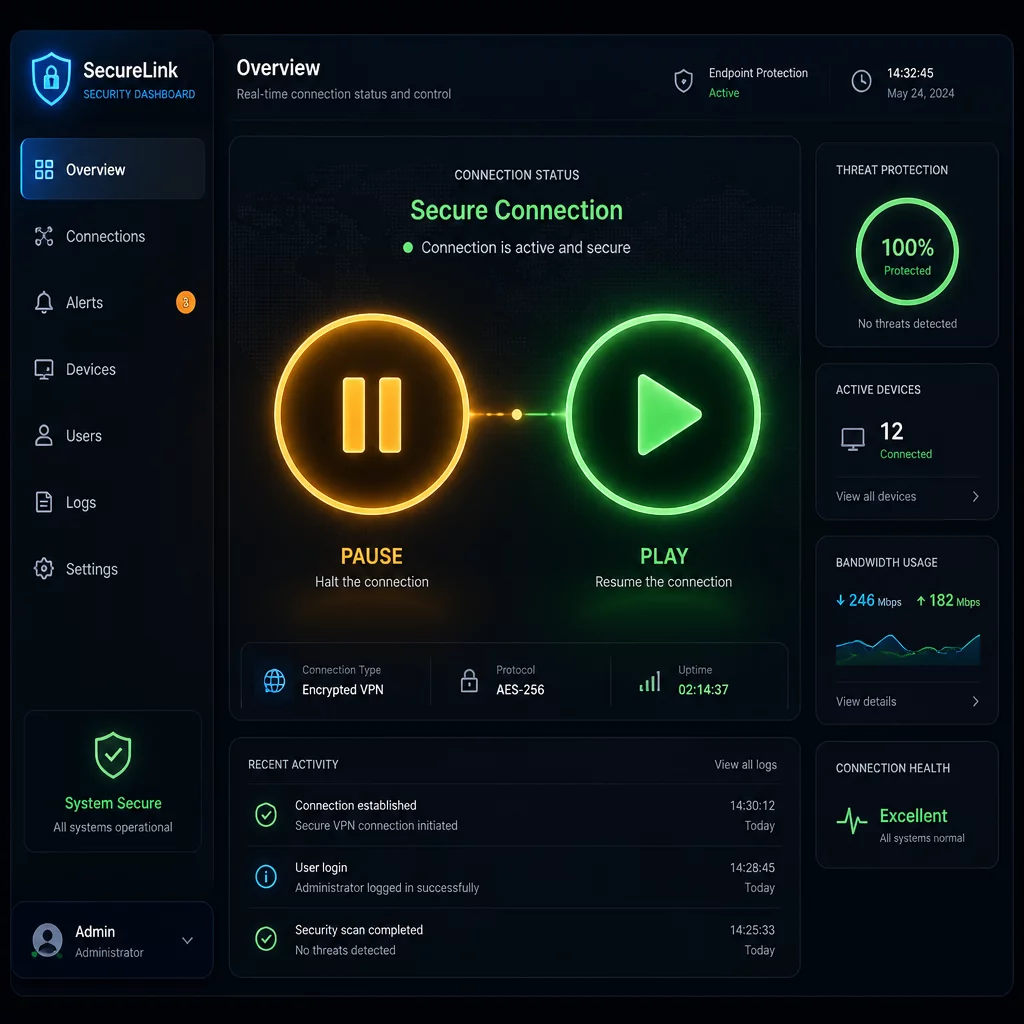
During active work, the user follows what is happening and can request a pause or disconnection using the agreed method.
Operational Protocols
- Retain mouse and keyboard control to override or pause technician actions when needed.
- Enter administrative passwords directly when elevated privileges are requested.
- Guide the technician by explaining error messages or recreating application glitches.
Post-Troubleshooting Verification & Cutoff
When diagnostics conclude, the user verifies the fix firsthand before the connection is definitively terminated.
Termination Protocols
- Test the restored application or system function directly on the desktop.
- Ensure all temporary diagnostic files or scripts are removed.
- Close the session toolbar or verify the disconnection notice on screen.